PNG to JPG
Converts your PNG images to JPG format easily using our free online tool PNG to JPG converter Image Toolz.



PNG to JPG Convert PNG Images to JPG Format
I once spent an embarrassing amount of time trying to upload a banner image to a WordPress theme. The image looked perfect in my folder. But every time I uploaded it, the file size was enormous, over 4MB for a single banner.
The reason? It was a PNG file. And while PNG is a fantastic format for many things, it was completely overkill for that particular banner. No transparency, no fine detail that needed lossless storage, just a large, colorful image sitting there eating up server space.
I converted it to JPG. File size dropped from 4.1 MB to 380KB while maintaining the same visual quality. Problem solved.
What Is PNG to JPG?
Before explaining the tool, it helps to understand why someone would want to go from PNG to JPG in the first place, because it's not always obvious.
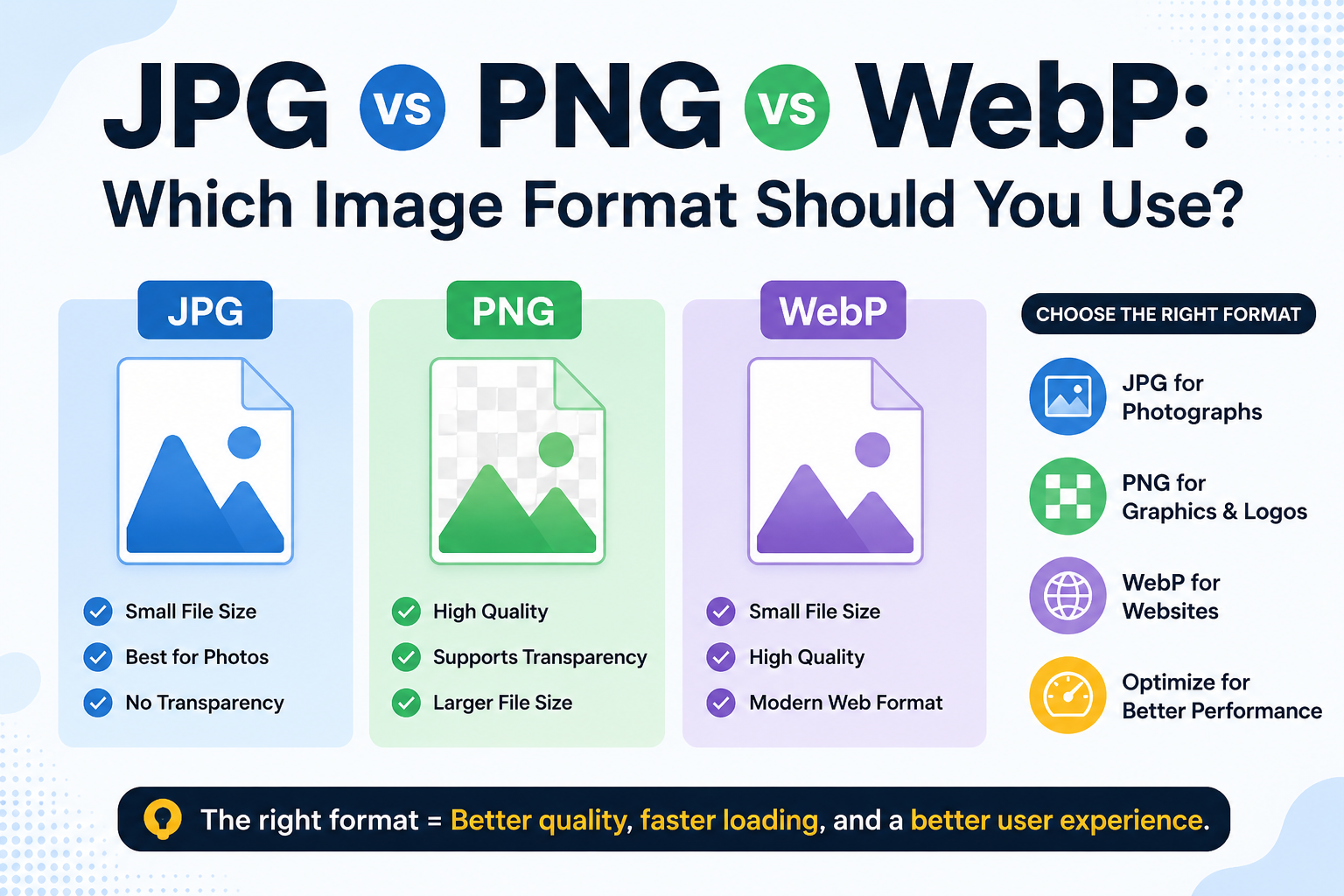
PNG stores image data without discarding any information. That's what "lossless" means. The result is a sharp, high-quality file, but also a heavy one. PNG is the right choice when you need transparency or pixel-perfect accuracy. For everything else, it can be unnecessarily large.
JPG takes a different approach. It intelligently compresses image data, removing detail that's hard for the human eye to detect. The file size decreases significantly, and the visual quality remains nearly identical for most real-world uses. JPG is the standard for photos, web images, and anywhere file size actually matters.
A PNG-to-JPG converter handles this switch cleanly. Your PNG goes in; a compressed JPG comes out smaller, loads faster, and is compatible everywhere.
How to Use the PNG to JPG Tool
The process takes under a minute:
- Open the PNG to JPG tool on Image Toolz
- Click "Choose File" and select your PNG image from your device
- Alternatively, click "Use Remote URL" to paste a direct link to a PNG image from the web
- Press "Convert"
- Download your JPG file immediately
Use Cases of PNG to JPG Tool
Here's where converting PNG to JPG actually makes sense in real life:
- Website and blog images: Large PNG files slow page load times. For blog headers, article images, and background photos where transparency isn't needed, JPG is the right format. Converting reduces load time without any visible drop in quality.
- Email attachments: PNG files can be surprisingly heavy. Most email clients have attachment size limits, and large images cause slow sending and downloading. A JPG version of the same image is typically 60–80% smaller.
- Sharing on WhatsApp and other messaging apps: PNG files sometimes fail to send on mobile apps when they're too large, or they load slowly for recipients. JPG shares faster and more reliably across all platforms.
- Storage management: If you have a folder full of PNG screenshots or graphics that don't require transparency, converting them to JPGs can free up valuable storage space, especially on phones and laptops with limited capacity.
- Social media uploads: Platforms like Facebook, Twitter, and LinkedIn recompress images on upload anyway. Uploading a JPG requires less work from the platform, and the result often looks better than a heavily recompressed PNG.
Benefits of Using Our Tool
- 100% free: no charges, no upload limits, no hidden fees
- No account required: start converting without signing up
- Remote URL support: convert PNG images from the web directly
- Significant file size reduction: JPG output is typically 60–80% smaller than PNG
- Fast processing: conversion completes in seconds
- Works on all devices: fully browser-based, nothing to install
- Files deleted after conversion: images are not stored or shared
Common Mistakes to Avoid
- Converting images that need transparency. If your PNG has a transparent background, such as a logo or icon, converting it to JPG will replace the transparent areas with white. JPG cannot store transparency. If you need to maintain transparency, PNG is the right format.
- Thinking JPG is always the right choice. JPG is excellent for photos and web images. But for screenshots with text, diagrams, and sharp-edged graphics, JPG compression can cause blurry edges and visible artifacts. For that kind of content, PNG genuinely performs better.
- Not keeping the original PNG. Always save your original PNG before converting. JPG compression is permanent; you cannot recover the lossless quality of a PNG from a JPG file once the conversion is done.
FAQs
My PNG file has a transparent background. What happens if I convert it to JPG?
The transparent areas will be filled with a white background in the JPG output. JPG does not support transparency. If keeping a clear background is important, stick with PNG or consider WebP.
How much smaller will my JPG file be compared to the PNG?
It varies by image, but in most cases, the JPG will be 50–80% smaller than the original PNG. A 3MB PNG photo often converts to a 300–500KB JPG with no visible quality loss.
Can I use this tool to convert PNG screenshots to JPG?
Yes. However, screenshots with a lot of text or fine interface details may exhibit slight compression artifacts in JPG format. For general screenshots, this is usually acceptable for technical documentation that requires sharp text; PNG may be a better choice.
.png)
Image Toolz
CEO / Co-Founder
I am a software engineer, web developer, and Google AdSense expert with two years of experience. I created a free image tools website to provide easy and accessible image tools for everyone.
Popular Tools
Recent Posts