JPG to PNG
Convert your images from JPG to PNG format easily using our free online JPG to PNG Converter tool at Image Toolz.






JPG to PNG Convert JPG Images to PNG Format
A few months back, I was helping a colleague put together a presentation. She had a company logo saved as a JPG. Clean image, good quality, but when she placed it on a dark-colored slide, a white box appeared around it.
That white background wasn't part of the logo. It was how JPG works. The format doesn't support transparency, so whatever was behind the original image got baked right in.
We converted it to PNG in under a minute. The white box disappeared. The logo sat perfectly on the slide. That's the moment most people realize why format actually matters.
What Is JPG to PNG?
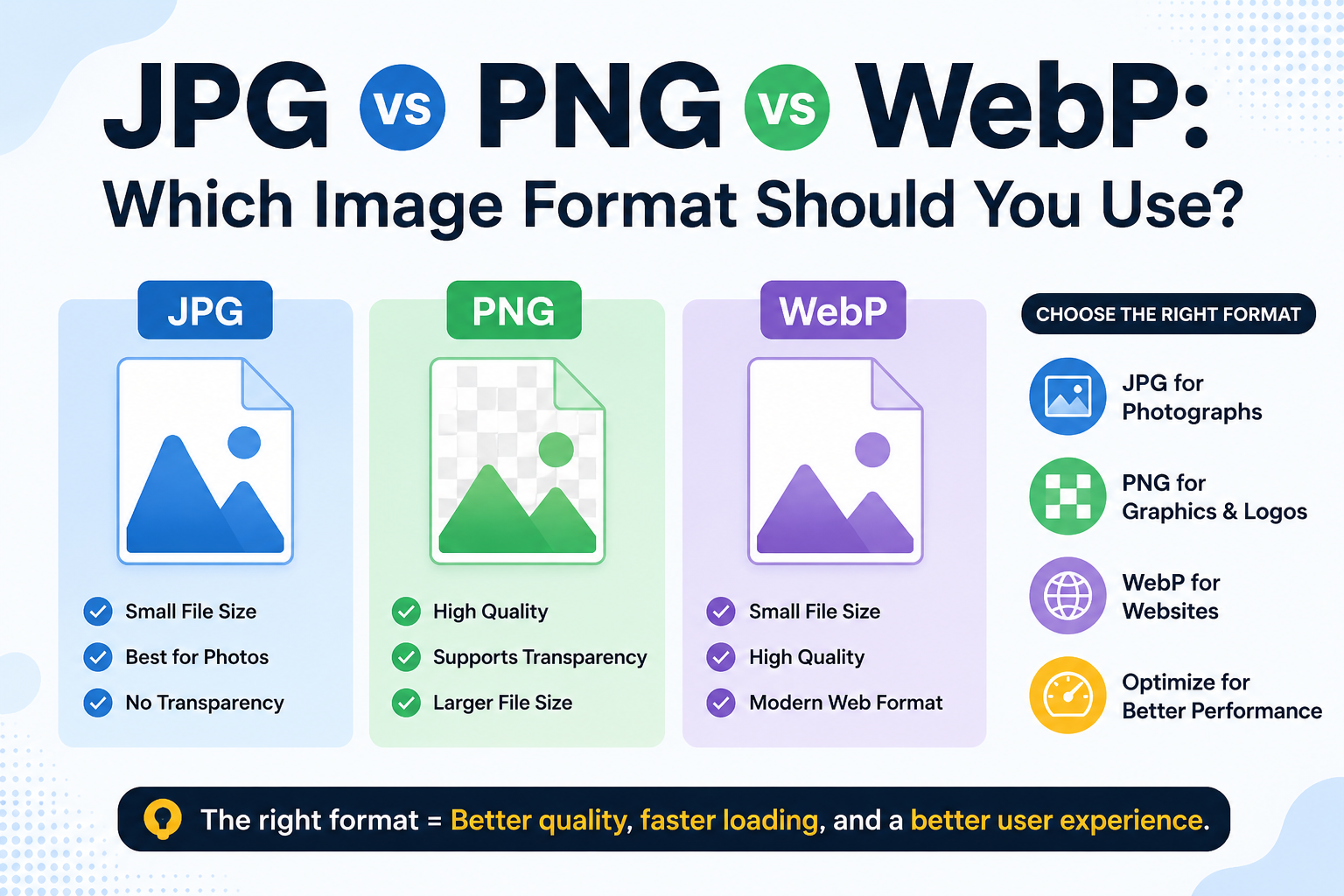
JPG and PNG are two of the most common image formats, but they were built for different purposes, and that difference matters more than most people realize.
JPG compresses image data to keep file sizes small. It's great for photos and everyday sharing. But that compression comes at a cost: JPG cannot store transparent areas. Everything gets a background, whether you want one or not.
PNG works differently. It uses lossless compression, meaning no image data is discarded. More importantly, PNG fully supports transparency. You can have a logo, icon, or graphic with a completely clear background — ready to sit cleanly on any color, any design, any platform.
A JPG-to-PNG converter converts your JPG file to PNG format. The image retains its quality, and from that point forward, you're working with a format that plays well with design tools, websites, and professional workflows.
How to Use the JPG to PNG Tool
The process is straightforward. Here's exactly what to do:
- Visit the JPG to PNG tool on Image Toolz
- Click "Choose File" and select your JPG image from your device
- Or click "Use Remote URL" to paste a direct link to any JPG image from the web
- Hit the "Convert" button
- Download your PNG file instantly
Use Cases of the JPG to PNG Tool
This conversion is more useful than it might seem at first. Here are real situations where it makes a genuine difference:
- Logo and branding work: Logos need transparent backgrounds to look right across different surfaces, such as websites, presentations, business cards, and merchandise. Converting a JPG logo to PNG is often the first step in making it properly usable.
- Graphic design and editing: Tools like Canva, Figma, and Adobe Photoshop handle PNG layers much better than JPG. If you're editing an image in a design project, PNG offers cleaner results and greater control.
- Presentations and documents: As the example above shows, placing a JPG image on a colored slide or document background often creates an unwanted white box. PNG removes that problem entirely.
- Website design: Web designers frequently need images with transparent backgrounds for headers, buttons, overlays, and UI elements. JPG cannot deliver that PNG can.
- Screenshots and UI documentation: Technical writers and developers creating documentation often need sharp, clean screenshots. PNG preserves fine text and edge detail far better than JPG at the same visual quality.
Benefits of Using Our Tool
- 100% free: no payment, no usage cap, no subscription required
- No sign-up needed: open the tool and convert immediately
- Remote URL support: convert JPG images from the web without downloading them
- Lossless PNG output: full image quality preserved after conversion
- Fast conversion: results are ready within a few seconds
- Works on any device: browser-based, no installation required
- Files not stored: your images are deleted immediately after conversion
Common Mistakes to Avoid
- Expecting transparency to appear automatically. Converting to PNG enables transparency support, but it doesn't create it. You'll still need a design tool to remove an existing background if that's your goal.
- Use PNG for every image on your website. PNG files are larger than JPGs. For photographs and complex images where transparency isn't needed, JPG or WebP is the smarter choice. Use PNG when you actually need its features.
- Converting already-compressed JPGs repeatedly. If you've been converting the same image back and forth between formats, start from the original file. Each JPG compression cycle loses a small amount of quality that can't be recovered.
FAQs
Can I remove the white background after converting to PNG?
Yes, but not with this tool alone. This tool handles the format conversion. To remove a background, use a design tool like Canva, Remove.bg, or Photoshop after converting the file.
Can the PNG file format support animation like GIFs?
Standard PNG does not support animation. There is a format called APNG (Animated PNG) that does, but it is separate from the standard PNG format and not widely supported everywhere.
Which is better for a website: JPG, PNG, or WebP?
It depends on the image. Use JPG for photographs, PNG for graphics needing transparency, and WebP for the best balance of quality and file size on modern websites.
.png)
Image Toolz
CEO / Co-Founder
I am a software engineer, web developer, and Google AdSense expert with two years of experience. I created a free image tools website to provide easy and accessible image tools for everyone.
Popular Tools
Recent Posts